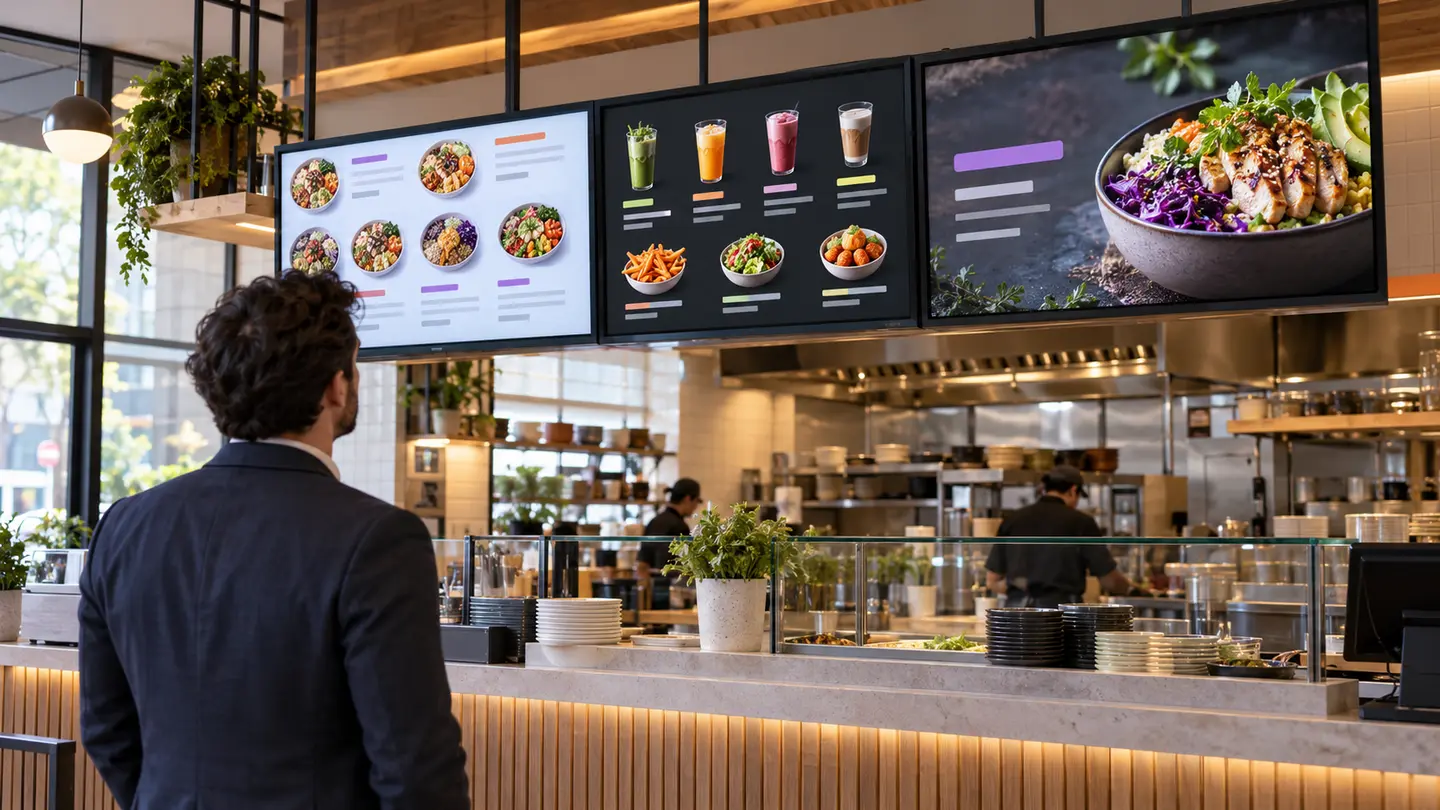
Give each screen one clear job. Keep related items together, keep every price beside its item, and use a separate area for short-term promotions. Customers should be able to understand the menu without searching across all the screens.
Multiple digital menu screens give a restaurant more room, but extra room can quickly become extra clutter. The useful question is not “How much can we fit?” It is “What does a customer need to see at this point in the order?”
This guide helps Melbourne restaurant owners prepare a clear screen plan before their designer creates the finished files. VicDisplays can inspect the venue, recommend suitable screen positions, supply and install commercial screens, set up the system and manage the displays. Your restaurant or designer supplies the finished, approved menu and promotional artwork.
Start with the ordering journey, not the screen count
Write down the steps a customer takes from entering to ordering, collecting and dining. At each step, note the information that genuinely helps them.
- Entrance: trading information, a short welcome message or one current offer.
- Order counter: the core menu, choices, prices and any information needed before ordering.
- Pickup point: collection guidance or other operational information supplied by your team.
- Dining area: suitable promotions or information that remains useful after the order.
Not every restaurant needs a screen at every point. The VicDisplays restaurant service page shows order-counter, dining-space and entrance placements as concepts. The actual positions and number of screens are confirmed after inspecting the venue.
Build one master menu map
Before designing individual screens, list every category on one page. Group items the same way customers ask for them. A casual restaurant might use mains, bowls, sides, drinks and desserts. Another venue may need lunch, dinner and takeaway groupings instead.
Mark which categories are permanent, which change by service period and which are temporary promotions. This stops the same item appearing on two screens with different wording or prices.
Then decide what must be visible at the same time. If a customer needs to compare a main item with its size or variation, keep that information together. Do not make people find the item on one screen and its price or conditions on another.
Give each screen a stable content zone
A stable structure is easier to scan than a layout that moves whole categories whenever a promotion changes. For an illustrative three-screen setup, the plan could look like this:
This is a planning example, not a fixed VicDisplays package. Your categories, screen count and positions depend on the restaurant layout and the written proposal.
Keep names, prices and conditions together
Customers should not have to guess which price belongs to which item. Place the item name, price and any important condition in one visual group. If a deal applies only at certain times, or a displayed price has a condition, keep that information close enough to be understood before ordering.
The ACCC’s price-display guidance says businesses must communicate clear and accurate prices before consumers order or purchase, and must not mislead consumers about prices. Your restaurant remains responsible for checking that the approved files match the current menu and point-of-sale pricing.
Use contrast as a practical proofing check too. The W3C contrast guidance is written for web accessibility, not as a universal digital-signage specification, but its 4.5:1 reference for normal text and 3:1 for large text can give your designer a useful starting point. The final test still needs to happen on the actual screen from the normal customer position.
Protect one area for promotions
Do not rebuild the whole menu every time you run a short offer. Reserve one defined promotion area or one dedicated screen, then keep the core menu stable.
Use that area for one message at a time. The product, price and conditions should be understandable without waiting through a long sequence. When the offer ends, replace it with an approved standard file rather than leaving an expired promotion on screen.
Your designer should label the promotional export clearly, including its purpose and version. VicDisplays manages agreed display changes using the finished files you provide. The change process and support scope are confirmed in your proposal.
Proof the menu from the customer’s position
A menu can look tidy on a laptop and still be difficult to use above a counter. Test it where customers will actually stand. Ask someone unfamiliar with the design to find a common item, its price and one alternative.
A simple five-minute test
- Stand at the normal queue or ordering position.
- Find one popular item and its price.
- Find one side or drink that pairs with it.
- Identify the current promotion and its conditions.
- Watch the full screen sequence and check that nothing important disappears too quickly.
If the tester has to move closer, wait for several slides or scan all screens to match an item with its price, simplify the layout. The goal is not to fill every available space. It is to help the customer decide.
Prepare a clean handover for each screen
Ask your designer to export the dimensions, orientation and format confirmed for the installed system. Name each file by location and purpose, such as order-screen-1_mains_v04-approved. If screens use different artwork, do not send a folder of unlabelled versions.
Include the requested start and finish date for temporary files, what they replace and what should appear afterwards. Keep one approved master menu so your restaurant can check that every export uses the same current information.
The VicDisplays pricing page explains that each written quote sets out the proposed screens, agreement term and service scope. It also confirms how your team supplies content and how the managed display service works.
Restaurant screen-planning checklist
Tick these while reviewing your next menu layout. The ticks stay only in your browser and reset when the page is refreshed.
Common questions
How many digital menu screens does a restaurant need?
There is no standard number for every venue. It depends on the layout, customer flow, available mounting positions and what the restaurant needs to show. VicDisplays recommends a setup after a site inspection and lists the proposed screens in the written quote.
Will VicDisplays divide and design our menu?
No. Your restaurant or designer creates the finished menu and promotional artwork. VicDisplays handles the commercial displays, installation, system setup and ongoing screen management within the agreed scope.
Can every screen show the same file?
It can if that suits the agreed setup, but separate zones may be clearer when customers need different information at the entrance, order counter or pickup point. File requirements and display locations are confirmed for your venue.
Plan the screens around your restaurant
Book a free site inspection with VicDisplays. We will assess your Melbourne restaurant, discuss what each screen needs to do and provide a written proposal.
Service details checked against the live VicDisplays website on 21 October 2026. The cover image is a generated illustrative concept, not a photograph of a client installation.