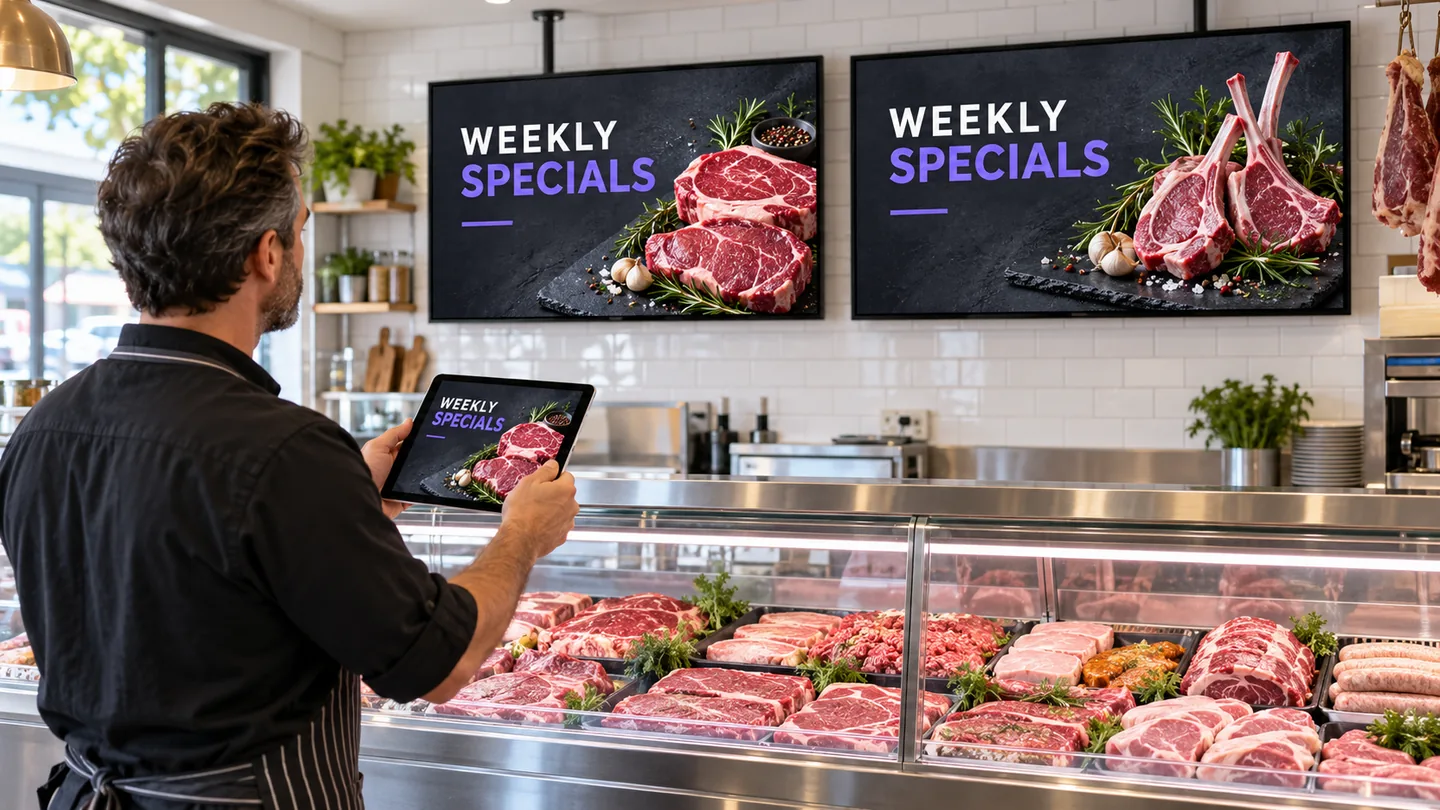
To keep butcher-shop specials current, send one approved artwork version with the screen location, start and finish times, and clear replacement instructions. Then check what customers actually see.
For a busy Melbourne butcher shop, the awkward part of weekly specials can be the handover. The designer has one file, the manager has approved another, and last week’s offer is still appearing between slides. A simple routine gives everyone the same instructions.
This guide covers that routine. VicDisplays supplies, installs and manages commercial displays. Your shop or designer creates the finished artwork and approves the product information, prices and conditions.
1. Approve the offer before approving the artwork
Keep one master list for the week’s offers. Give one person responsibility for checking it before the designer exports the screen files. Include:
- The exact cut, product or pack name.
- The selling price and whether it is per kilogram, per item or per pack.
- Any minimum quantity or other offer conditions.
- When the offer begins and ends.
- What should happen if stock runs out earlier.
Compare the artwork with this list, rather than approving it from memory. If a product name or condition changes, send the corrected information back to the designer before sending the file for display.
The shop stays responsible for the accuracy of what it advertises. The screen-management team needs a finished, approved file, not a collection of price messages to interpret.
2. Keep product, price and conditions together
A large price is only useful when customers can tell what it buys. Ask your designer to keep each product name, price unit and relevant condition together. Avoid putting a minimum quantity in a distant corner.
For illustration, a chicken-wings offer sold by weight with a minimum purchase should make both the per-kilogram basis and the minimum quantity clear. This is a layout example, not a live offer.
Proof the design at the shop’s normal viewing position. If staff must explain which price belongs to which cut, simplify the layout. A screen should not require customers to remember an item from one slide and find its conditions on another.
3. Name the file so the right version is obvious
Agree the required format, dimensions and orientation before your designer exports. These depend on the display setup; there is no need to guess a universal specification.
Use a filename that identifies the purpose, date and version. For example, counter-specials_2026-10-26_v03-approved, followed by the agreed file extension. Keep earlier versions in a separate archive and send only the approved export for publishing.
Send the actual file through the agreed channel. A screenshot of a design conversation can crop conditions or make the approved version unclear. If there are separate counter and window layouts, label each file for its intended screen.
4. Send replacement instructions with the file
“Please update the specials” leaves several decisions open. A useful handover says what goes where, when it changes and what must stop showing.
Illustrative handover message
Please display the attached approved counter-specials file on the service-counter screen from opening on Monday 26 October 2026 until closing on Sunday 1 November 2026, using Melbourne local time.
Replace the previous weekly-specials file completely. Keep the separate shop-information slide. At the end of the offer period, return to our approved standard product-list file. Please confirm the requested timing is available under our agreed service.
The dates and instructions above are examples. Confirm change-request lead times, support hours, scheduling options and any costs in your agreement. Sending a requested time does not establish that it has been accepted.
The VicDisplays butcher-shop display service uses your finished files, with the update process and support scope agreed in your quote.
5. Decide what replaces an expired or sold-out offer
Prepare an approved fallback file before the promotion starts. It could be a standard product list or a shop-information screen without time-limited prices. Specify which file replaces the promotion and who can authorise an earlier change.
If one item sells out, ask your designer for a corrected approved file and follow the agreed change process. Do not assume the display connects to your till or stock system. Any such connection would need to be explicitly confirmed.
Check related counter tickets and checkout prices too. The ACCC’s price-display guidance says prices must be clear and accurate. It also explains that when different prices are displayed for the same item, businesses generally need to honour the lowest price or stop selling it until the error is corrected, subject to the exceptions in that guidance.
6. Check the whole screen sequence after the change
Have someone at the shop watch the complete display sequence. Check each affected screen, not just the first slide. Confirm the old offer has disappeared, the replacement is readable and the information matches what staff are using.
If something looks wrong, report the screen location, filename and issue through the agreed support channel. A photo can help identify clipping or an incorrect version. Keep the approved file and publishing confirmation together for the next handover.
Your weekly sign-off list
Tick these while checking your next update. The ticks are temporary and are not sent anywhere or saved after a refresh.
Common handover questions
Can VicDisplays design our weekly-specials artwork?
No. Your shop or designer supplies finished, approved creative files. VicDisplays handles the commercial screens, installation, system setup and ongoing display management within the agreed scope.
Are weekly changes automatically included?
Your agreement defines change requests, support and service scope. Confirm those details rather than assuming unlimited changes or a particular response time. The pricing page explains how the written quote sets out the package.
Can we use the same routine in a takeaway?
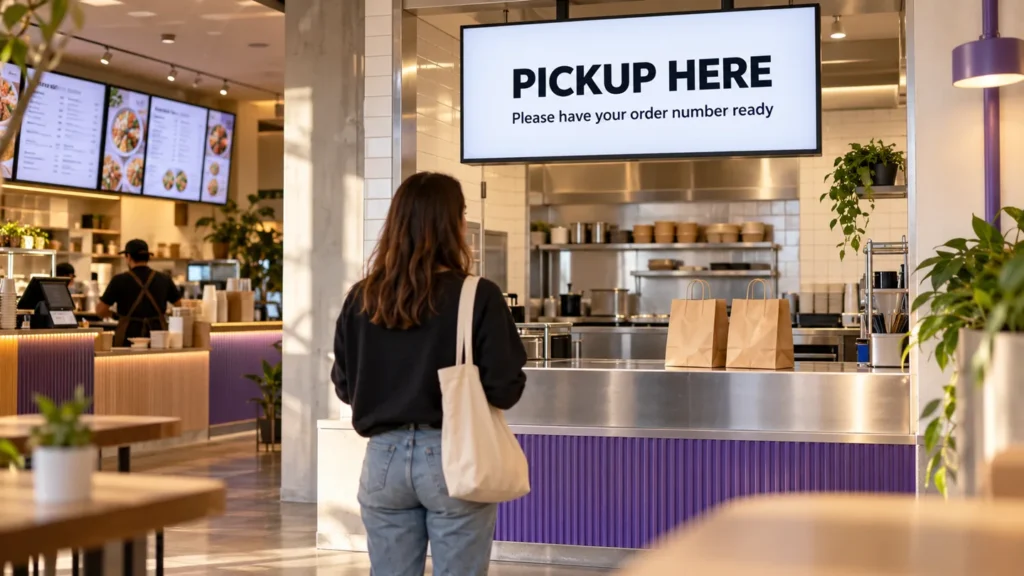
Yes, the approval and replacement steps can also help with supplied menu and promotion files. A takeaway display setup may have different ordering and pickup screens, so name each destination clearly.
Plan the screens and the handover together
Tell VicDisplays about your Melbourne butcher shop and how you supply weekly specials. A free site inspection can help define the display setup and agreed management process.
Service details checked on 20 October 2026. Cover image is a generated illustrative concept, not a photograph of a client installation.